Create and Edit Expressions
How to create, manage and edit expressions across your workflows and actions
Written By Ben Lehmann
Last updated Over 1 year ago
Overview
This article outline how to create and manage new expressions for your workflows and actions, and how to edit and update them.
Create and manage expressions
How expression use tags
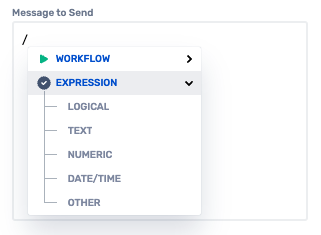
Expressions are added using the Tag Control. To begin entering an expressions, enter a forward slash / character. This brings up the Tag Control. Use the expressions option in this list to select the expression you wish to add to your context.
After an expression is added, it is represented within the field by a tag that OneBot adds into the field. See the article on using the Tag Control for further information on tags and how they function.
Add an expression
Add a tag into a field using OneBot’s Tag Control. The tag represents and hold on to your expression. Enter a forward slash / character to being adding an expression.
To add an expression:
Place the text insertion cursor into the field at the point where you want the tag for the expression to appear.
Type the
/character to begin working with the tag control.Click Expression in the revealed list to show the expression categories.
Select a category to open the expression configuration popup.
Delete an expression
Delete expression by placing the text cursor into the field and typing backspace to delete them like you would delete letters from a text string. As expressions are contained within a tag, deleting an expressions is as simple as deleting the tag that holds them.
Alternatively, tags can be deleted by clicking the cross to the right-side of each tag.
Edit expressions
All tags containing expressions remain editable after they are created.
Click on an expression tag to open the expression dialog, allowing you to make changes to the expression as needed. Because expressions are nested, internally nested expressions are accessed through their enclosing expressions. This may require you to ‘drill into’ to enclosing outer expressions if the expression you want to edit is deeply nested.
Resources
OneBot provides many expressions. For a full treatment of all of the expressions, what they do and how they function, please see the Expressions Reference in the Reference section.
Was this helpful?
Still need help? Share an idea