Using Adaptive Cards
Understand how to add, use and remove cards with OneBot
Written By Ben Lehmann
Last updated About 1 year ago
Overview
This article covers how to create new Adaptive Cards in the Content Hub, how to add Card Definitions to give them behaviour, and how to mange their lifecycle.
Creating Cards
Cards have to be available in the Content Hub before they can be used. Adding a new card to the Content Hub creates an ‘empty’ card configuration. You then add a Card Definition to your card to define its behaviour and content. The definition sets the card’s elements and bindings, which the card and OneBot then use to communicate and share information with your users.
For information on writing a Card Definition see the article, Write an Adaptive Card.
Create a new Card Configuration
Open the Content Hub
Select the Card tab. All your existing Card Configurations are listed here.
Click New in the top-right to create a new Card Configuration. This will display a popup.
Give the Card Configuration a Name and optionally a Description.
Select ‘Adaptive Card’ from the Card Type dropdown.
Click ‘OK’ to add the empty Card Configuration to your Content Hub, and open the configuration in a new view.
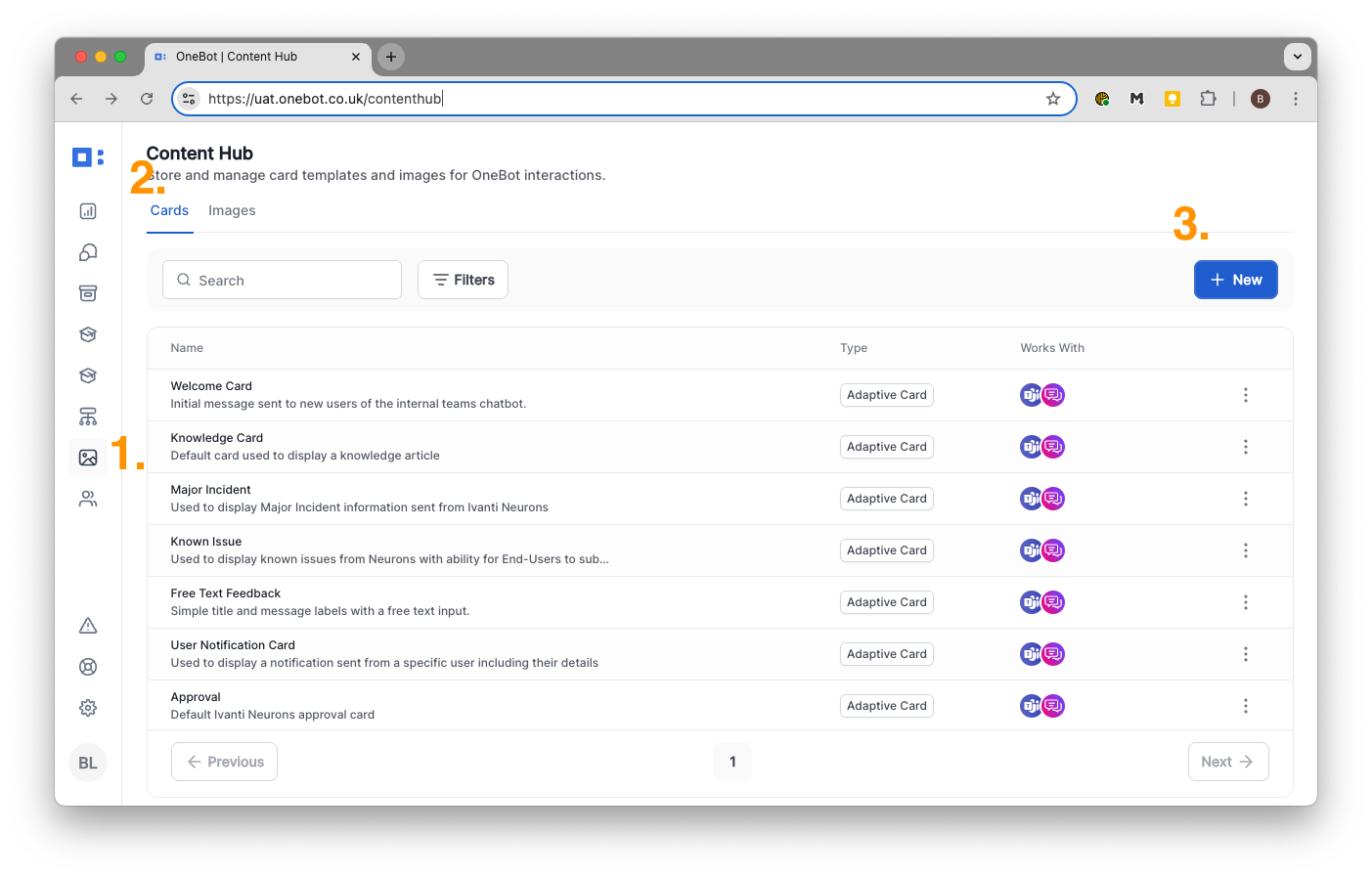
Add a new Card Configuration
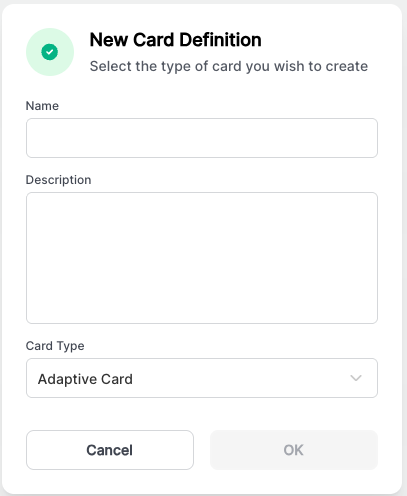
Apply basic settings to a new Card
Add a card definition to a card configuration
Give your card its new content and behaviour by pasting the definition you’ve written into the Definition field of your card’s configuration.
Click on the disclosure triangle next to Card Definition to show the entry field for the card definition payload.
This is where the JSON that defines the card payload is entered.If you are using Microsoft’s Card Designer to support the development of the new card, copy the JSON defining the payload from the designer and paste it into the Card Definition field.
A previewed is shown in the top-right of what the card will look like when displayed.
Click Save to make the card available for use in OneBot workflows.
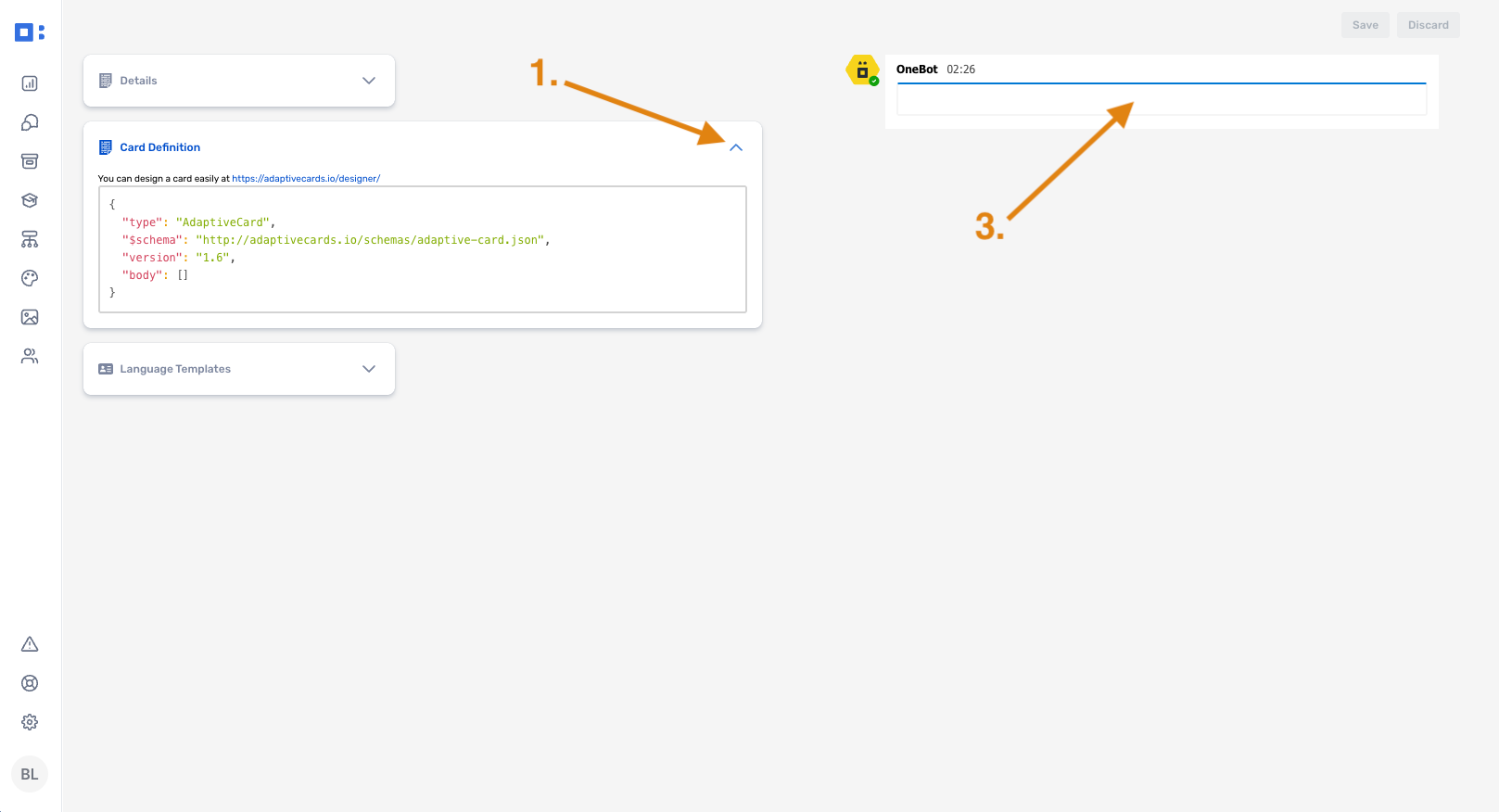
Adding a definition to a Card Configuration
Edit or delete Card Configurations
The Content Hub enables you to edit or remove card configurations from OneBot.
To edit an existing card, click on its record in the Content Hub to open the Card Configuration.
To delete a card, click the three-dot kebab menu on the right of the card’s record and select ‘Delete’.
⚠️ Ensure no workflow are using the card before you remove its configuration from the Content Hub.
Was this helpful?
Still need help? Share an idea