Web Chat Client Introduction
Add a OneBot web chat client to your website.
Written By Ben Lehmann
Last updated Over 1 year ago
Overview
The features of OneBot’s web chat configuration tool enable you to create, deploy, manage and update your instances of OneBot’s web chat clients. Here, you can access Transcripts of the chats between your bots and your website’s users; and style the appearance of your chat client’s using OneBot’s powerful Designer tool, helping you to shape your bots to your brand.
Understand web chat clients
OneBot web chat clients are created for your OneBot service via the admin portal. Simply navigate to the appropriate configurations manager to setup a new web chat instance. OneBot creates a new web chat client for you when you first save a new configuration. Once created, a OneBot web chat instance can hold separate conversations with many visitor across many websites.
How OneBot web chat clients work
A web chat bot is linked to a website using connection script. The connection script is created for you by OneBot when it creates your chat bot instance. Adding the script to your website lets your site’s visitors connect to your web chat bot.
You also add your website to a trusted domains list when you configure a new web client. Adding the domain lets OneBot recognise a user visiting your site should be trusted, enabling OneBot to set up a secure connection with their browser. The secure connection lets your web chat client safely exchange chat messages with the visitor.
Create and manage web chat clients
Create and manage your web chat clients using the client configurations view. Use this page to access and manage instances of your OneBot web chat clients: this is where you can create new clients and remove expired ones.
Access the client configurations manager
Access your existing web chat clients on the client configurations page of the OneBot website:
Select ‘Chat Clients’ from the sidebar of the OneBot portal to open the Chat Clients page.
Find the ‘Web Chat Client’ integration and click ‘Configure’ to view your Web Chat Client configurations.
Use the client configurations page to manage and create instances of OneBot web chat clients.
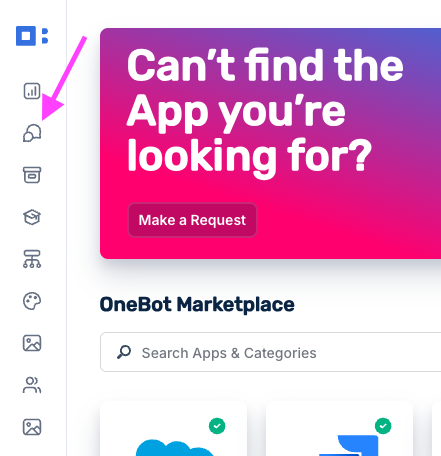
Open the Chat Client page
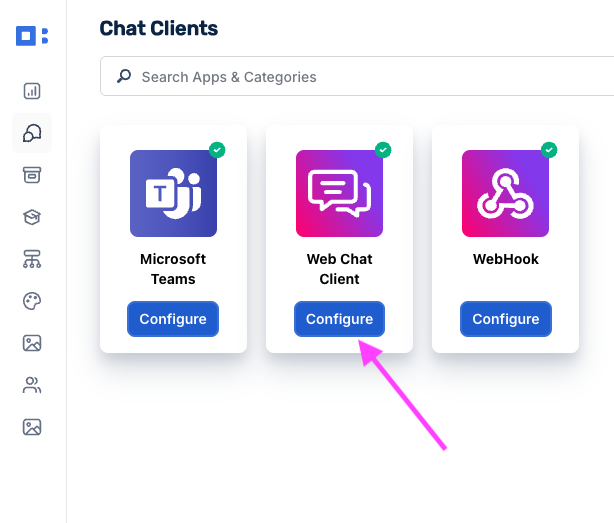
Click ‘Configure’
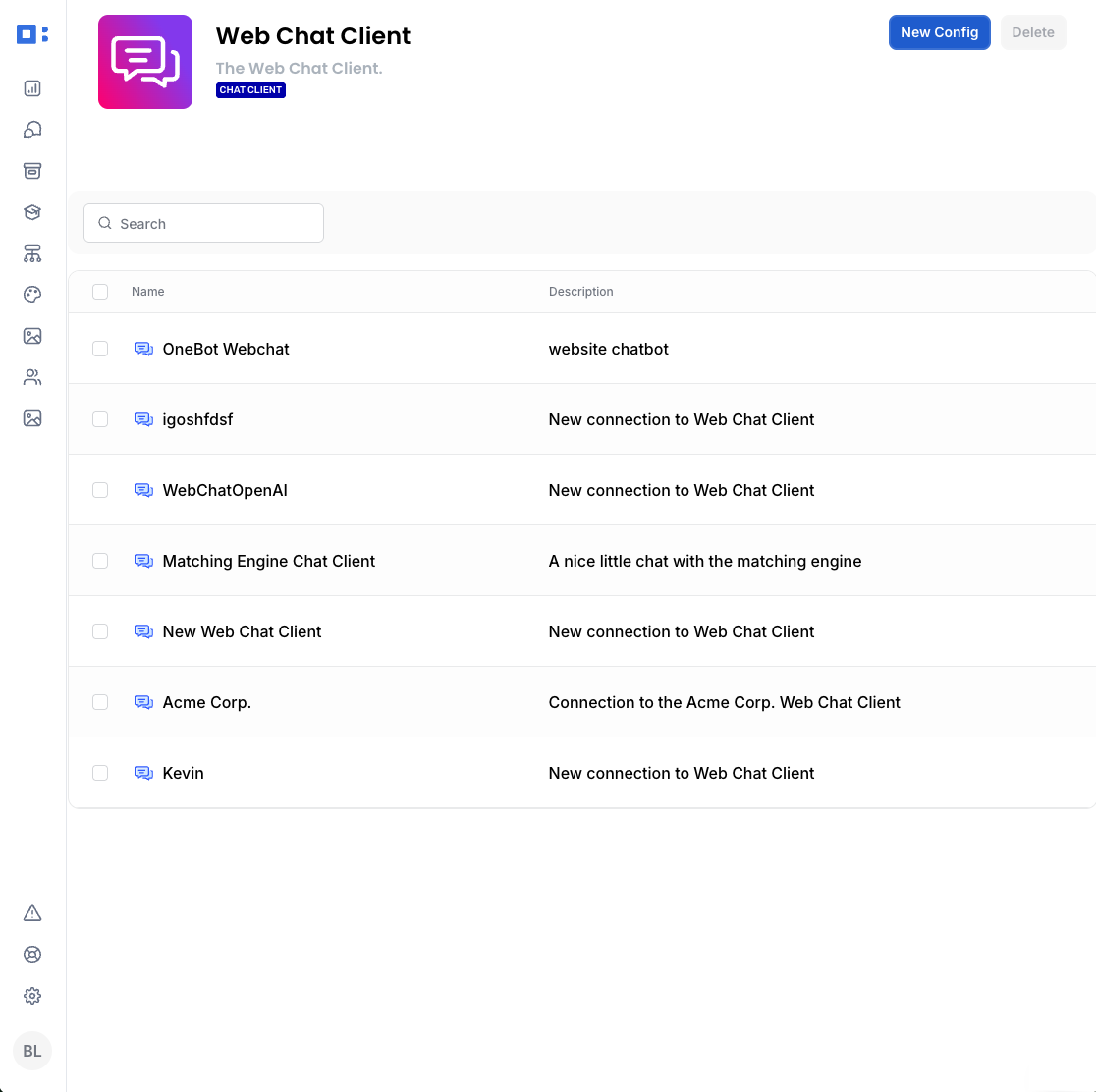
The client configurations manager
Create a web chat client
Setting up a new chat client configuration is as easy as giving it a name, listing trusted domains, and choosing a natural language intent for your OneBot instance.
Adding trusted domains
Add the domain of your website to the list trusted domains. This can be found in the configuration view for your web chat client, under the ‘Settings’ tab. The following criteria need to be met when adding a trusted domain:
Each domain must be on a separate line.
Optionally, blanket trust subdomains by replacing them with the
*wildcard.The protocol https:// must be included at start of each domain in the list.
Don’t include a forward slash or other characters following the top level domain (i.e. don’t put anything on the end after the .com, .org.uk, etc. etc.)
Steps to create a web chat client
Navigate to your web chat client configurations manager (see above)
Click ‘New Config’ in the top-right to create a new web chat client instance.
Give your client a name, and optionally, also give it a description.
Add trusted domains to the trusted domains. (Note requirements, above)
Select a Natural Language Processing (NLP) intent.
Click ‘Save’ in the top right to save your configuration.
OneBot then generates the connection script for your web chat client.
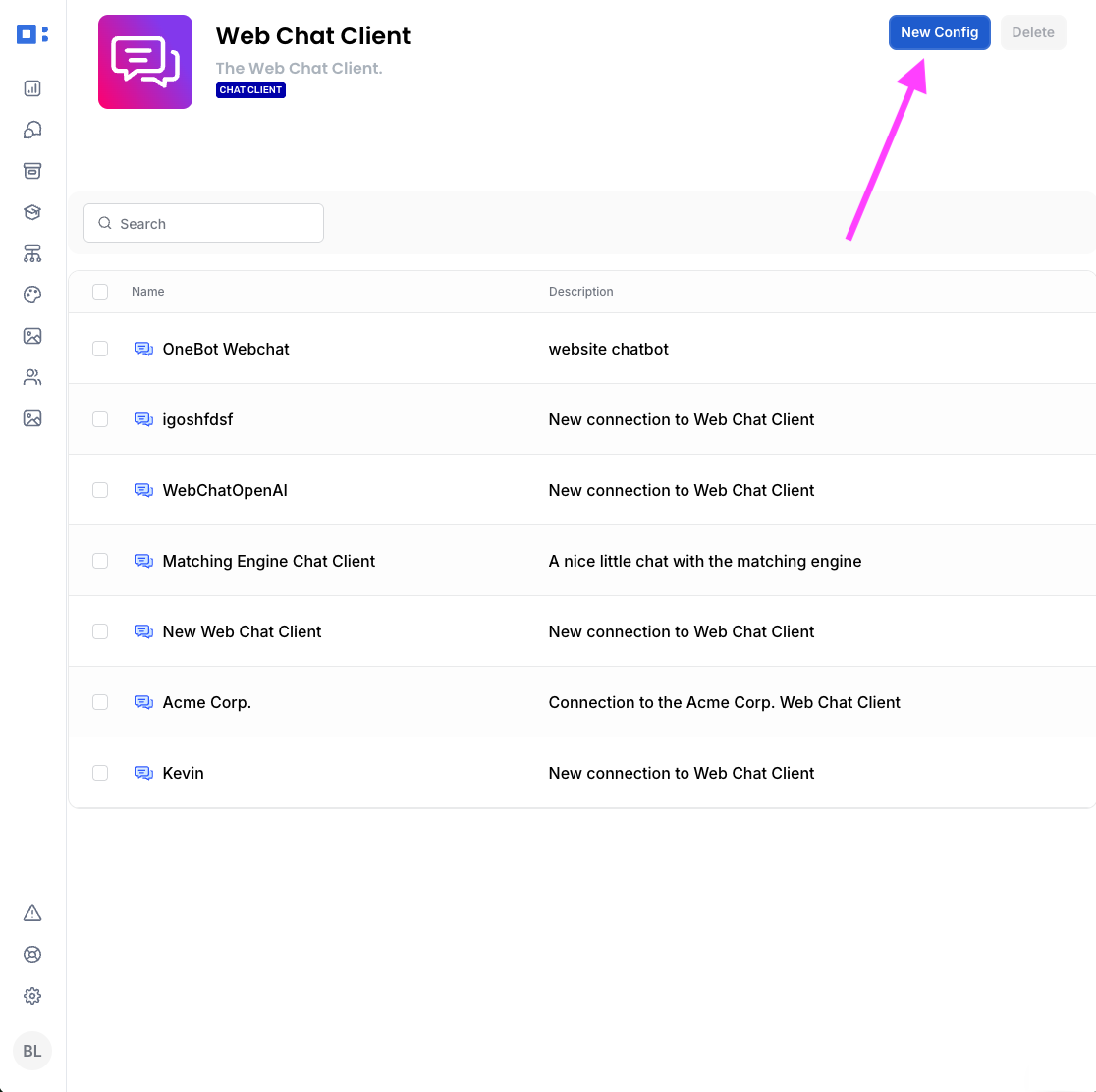
Create a new web client

Configure the chat client
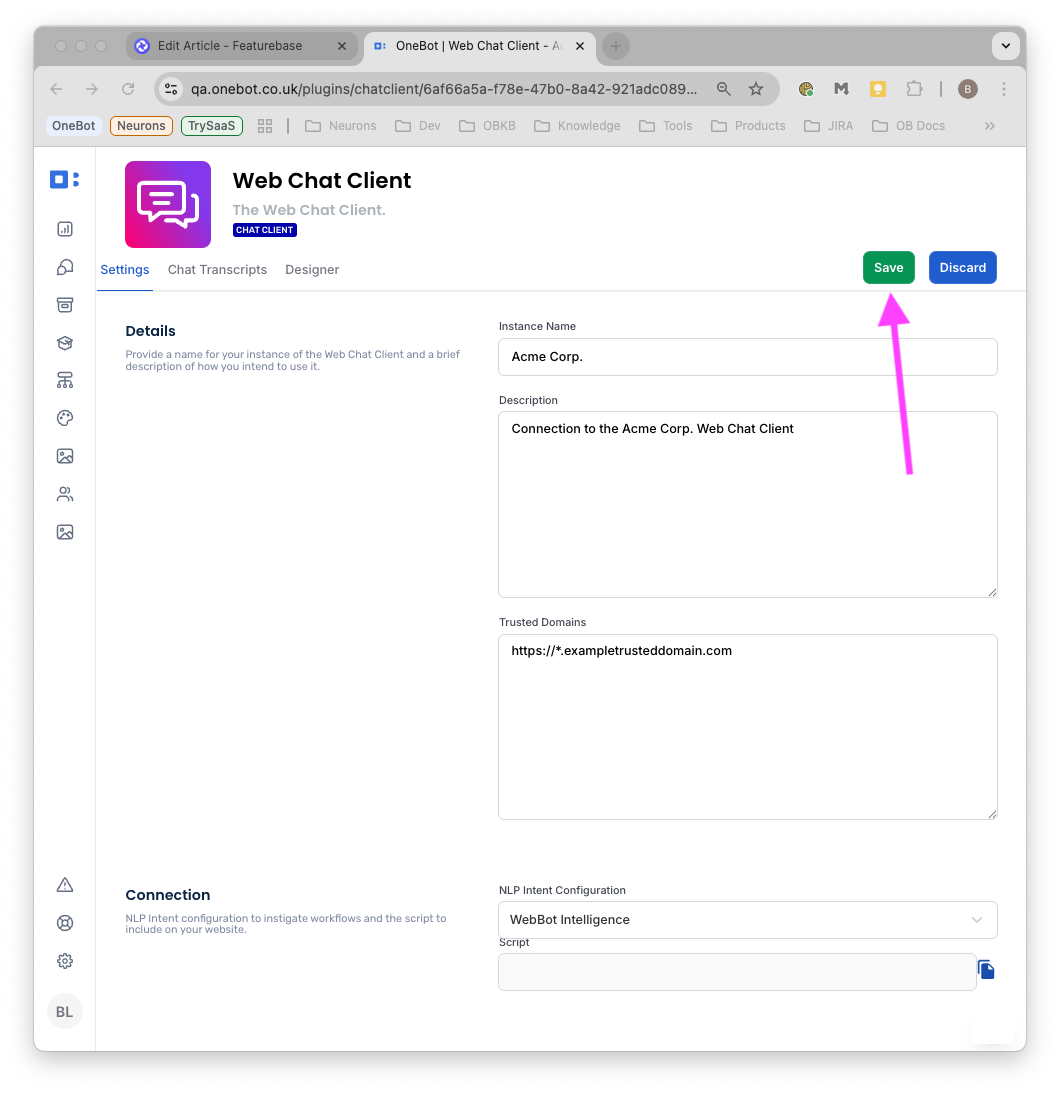
Click ‘Save’ to create the client
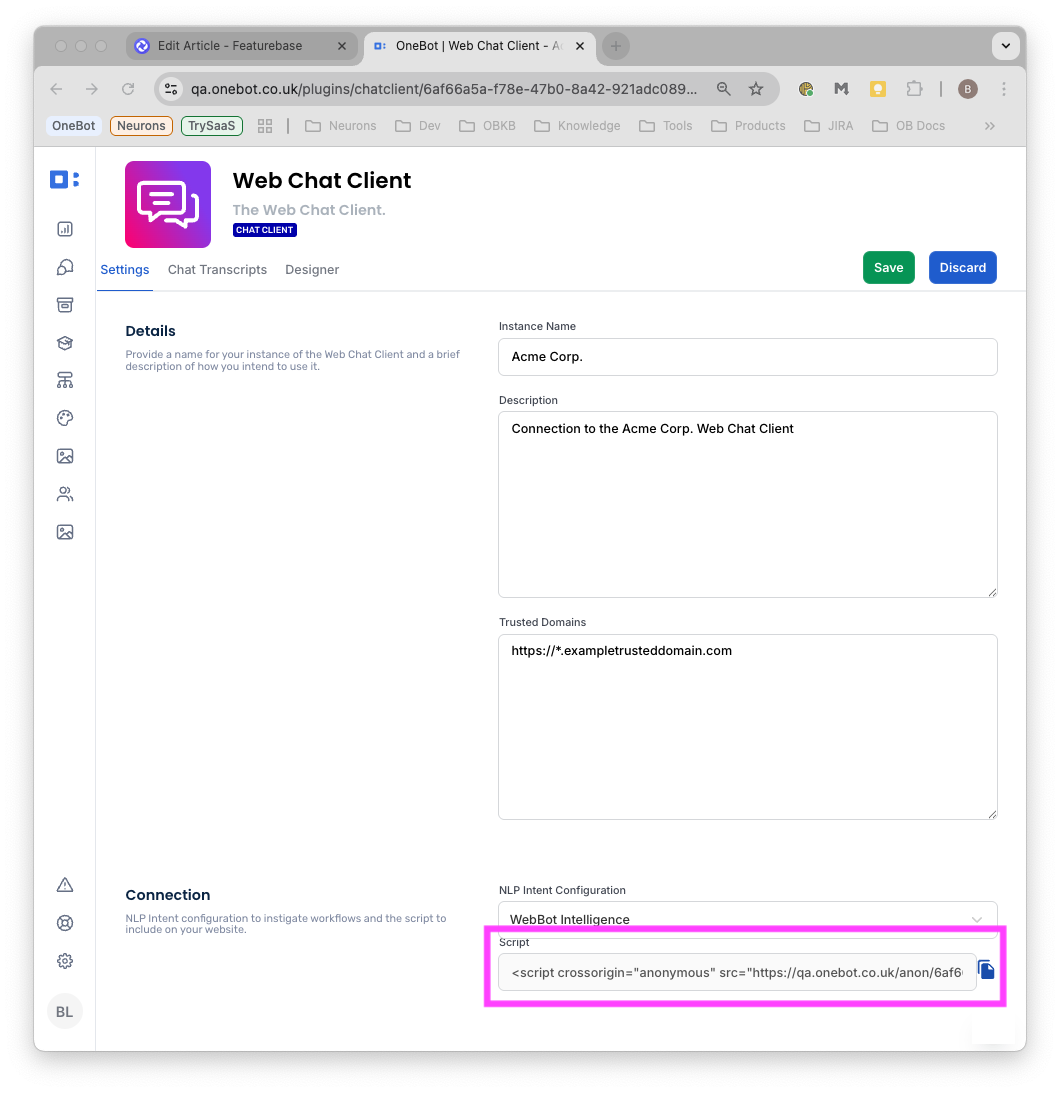
Client connection script is generated
Delete a web chat clients
Removing an existing instance of a web chat client is straightforward. Follow the steps below to delete an instance of a web chat client:
Access chat client configurations (see above)
Click the checkbox next to the web chat client you would like to remove.
Click ‘Delete’ in the top-right to delete your web chat client instance.
Access client configurations
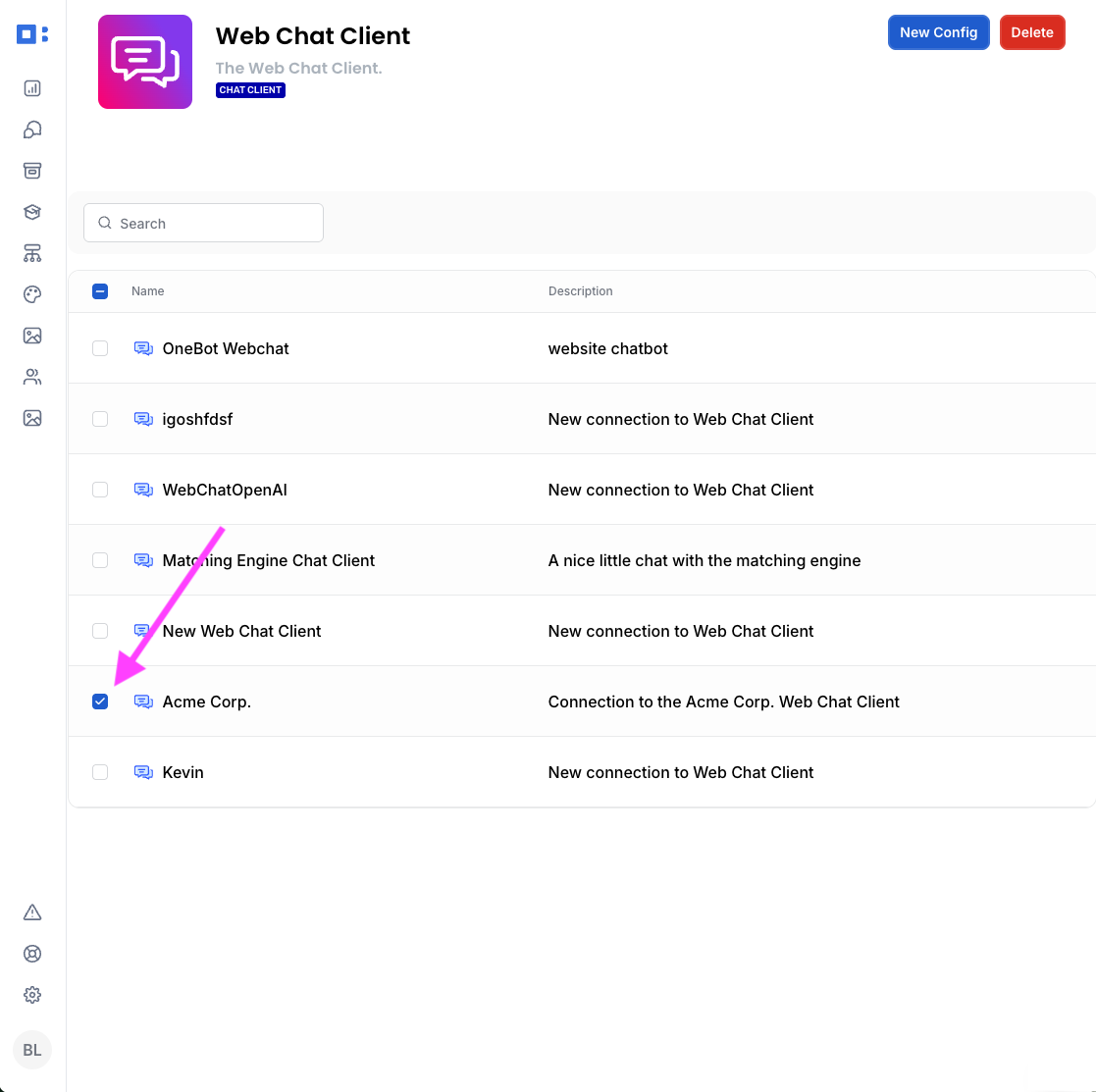
Select a client to delete

Click ‘Delete’ to delete the client
Modify a web chat clients
Responsibility for how your chat client appears on your website is shared between OneBot and your site’s code. You set the appearance of your web chat clients through the Designer, using its styling and customisation features to configure your client’s precise design and tailor it to the needs of your brand. However, to control the layering (the z-index) of your chat client, and to set its position on the page, you will need to configure some of the code of your website: see the section Change the z-index and position of a Web Chat Client for further information.
Customise the appearance of a client
Follow the steps below to access OneBot’s Designer and customise your bot’s appearance:
Navigate to your web chat client configurations (see above) and double click on an existing client instance to open its configuration page.
Click the ‘Designer’ tab in the top-left to customise your bot’s appearance.
Configure the appearance of your client using the customisation features, below.
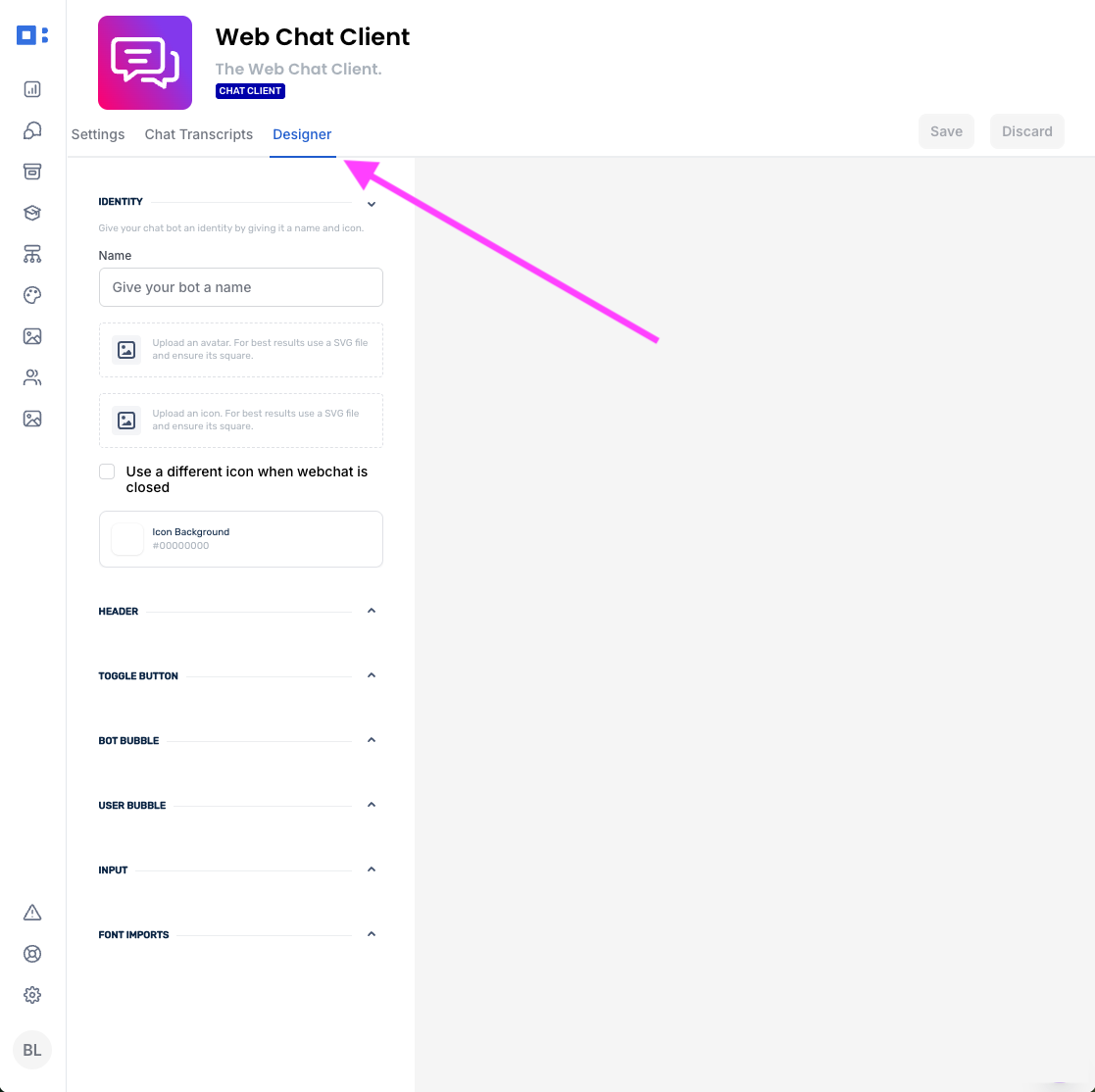
Open the Designer
Control where the bot appears
Use the Designer to customise the appearance of the client itself, leaving where the client should appear under the control of your site: the layer stacking order (z-index and stacking context) of your chat client is controlled by your site’s CSS; similarly, your site’s CSS also controls where your chat bot appears on the page (its position). The section Change the z-index and position of a Web Chat Client shows how your site’s code can set the position and layer order of your web chat client.
Designer customisation features
There are several features available to control the appearance of your bot. Configure the settings for these using the Designer, where the features are organised into sections:
Change the z-index and position of a client
The position of your web chat client on your site’s page, and its z-index, are controlled by your site’s code. For your site to control the layering and position of your bot, your site needs to target the chat client’s root element, using the tag onebot-webchat as the selector. From here, your site can configure the position and z-index properties of your chat bot.
For example, to force your chat client to be rendered in front of other elements, you might choose to set its z-index to a high value, perhaps something like 99999. This causes your web client to appear above other elements within its stacking context.
Similarly, to cause your chat client to appear locked to the lower-right corner of the browser window, you might set the position property for the onebot-webchat element to fixed, and its right and bottom properties to a value that maintains a small gap, perhaps around 40px.
The following example shows how you might set these properties within the CSS of your site:
onebot-webchat {
    z-index: 99999;
    position: fixed;
    right: 40px;
    bottom: 40px;
}
For further information on configuring these properties, see the guidance documentation provided by the Mozilla Foundation on the z-index and position properties of elements.
Use web chat clients
Your web chat client needs to be connected to your website. Once it’s connected, the bot can appear to your site’s visitors. The script used to connect your web chat client to your website is found in the Connection section of your bot’s configuration page. The connection script is generated by OneBot once the client has been saved at least once. The connection script needs to be inside the <head> element of page(s) where you want the chat client to appear.
Note
Local web servers will need a public URL as a trusted domain. Tools supporting this, such as those provided by ngrok, may be useful when developing with local web servers.
Connect a client to your website
Connect a chat client to your site by placing your chat bot’s connection script inside the <head> element of your website:
Access the configuration page for an existing web chat client (see above).
Copy the ‘Script’ found in the Connection section under the settings tab.
Modify your site’s html to include a copy of the client’s connection script inside your site’s
<head>element.Deploy the changes and refresh your site to see the active web chat client on your site.
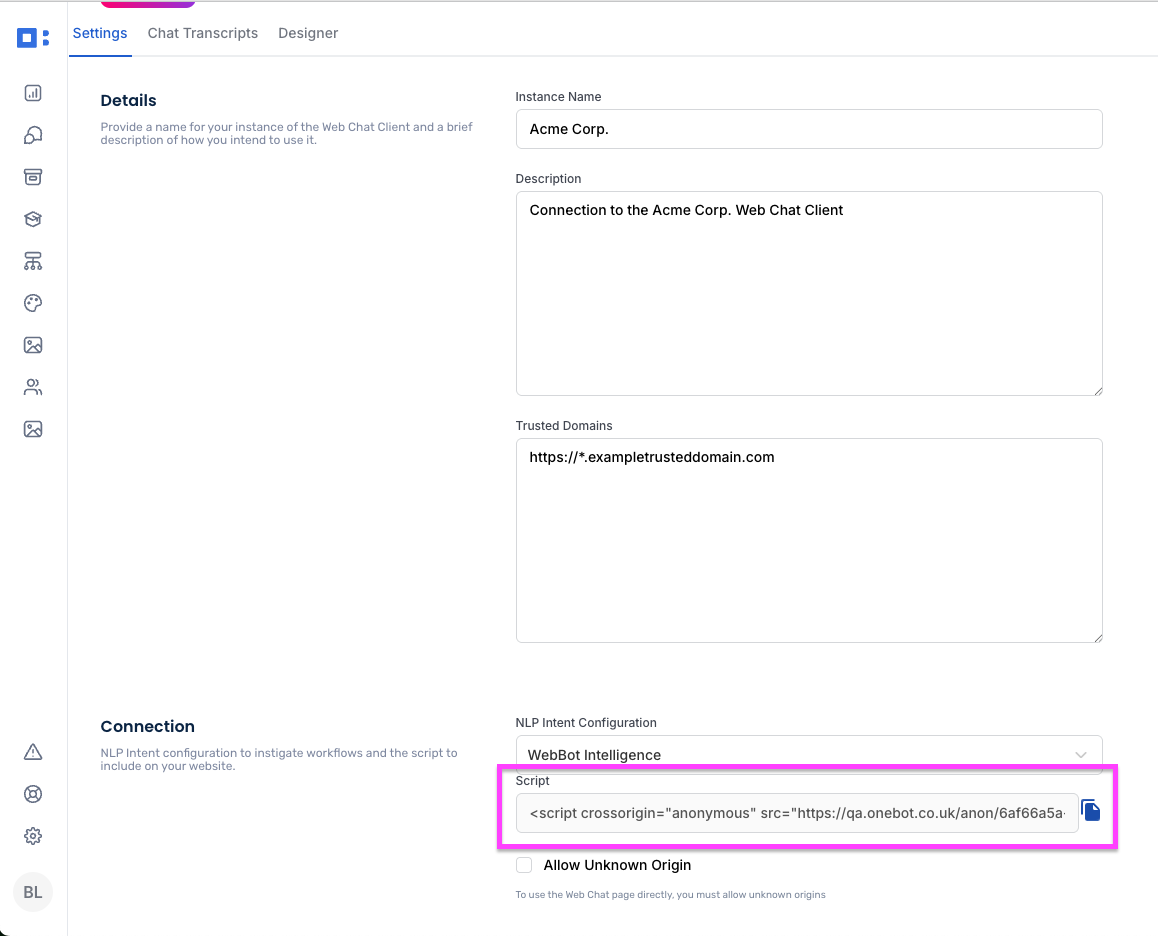
Web chat client connection script
Web chat client actions
The web chat client integration offers a number of OneBot workflow actions to enable your workflows to interact with chat users.
v3.0
Was this helpful?
Still need help? Share an idea