Case
Control the process flow inside workflows
Written By Ben Lehmann
Last updated Over 1 year ago
Overview of the case action
Case actions act as decision points within workflows: they enable processing control to switch into different sequences of actions, based on specific logical clauses.
Understand the case action
Case actions are flexible tools used throughout the system for different. For example, case actions enable users to reuse workflows with similar and yet distinct processes or outcomes; they allow a workflow to respond to alternative user interactions; and they allow workflows to work dynamically with different kinds and sizes of data and record sets, adapting the workflow path as data needs change.
Case actions use clauses to select an appropriate workflow branch to follow. These might be , based on evaluating a number, or a true or false boolean condition, but will always be based on some logical expression.
Case - a particular ‘route’ or ‘path’ taken by the workflow after reaching the Case step.
Clause - a logical expression attached to the top of a path through a case that is used to decide if the workflow should use that path. If a clause for a case is evaluated as TRUE, then that path is select to follow onward through the workflow.
Default case - a non-removable case that is used when there are no other cases with clauses which evaluate to TRUE. It doesn’t have a clause and cannot have one added.
Note: at first glance, there may appear to be a conflict in naming terms in the Case step. However, the chosen branch is referred to as the case, while the logical expression used to choose a particular case to follow is clause for that case - you’ll therefore see both terms used within a Case step.
Once created, case actions and configurations can be added to the case pathways. This enables rich and complex interaction and behaviour within your workflow, including nesting further case actions, and using Go To actions to jump to different points in the workflow.
Create and manage a case
Add the action
How to add an action to your workflow
How to add an action to your workflow
Click the ‘plus’ symbol on the workflow path at the point you want to insert the action. This opens the action menu slide-over.
Either:
Search for the action using the Search field above the actions in the menu.
Locate a Recently Used action in the top section of the menu.
Navigate to the action within menu: Core actions are listed under Actions, while Plugin actions are contained within their associated integration.
Select the desired action to insert it. This reveals the action’s configuration panel.
Configure the action
While the case action slide over is shown, click ‘Add Case’ to add a new case path to the case action. This can be done multiple times to add multiple case paths to the action.
Click back in the main view to hide the slide-over.
Delete a case
Deleting a case action from a workflow removes the case completely. However, this also deletes all configuration and actions contained within it.
Edit a case
Case path configuration
Cases pathways need to be configured before they can do work. Give cases a name to suit your needs, and add decision logic to each case to let the workflow select the right pathway.
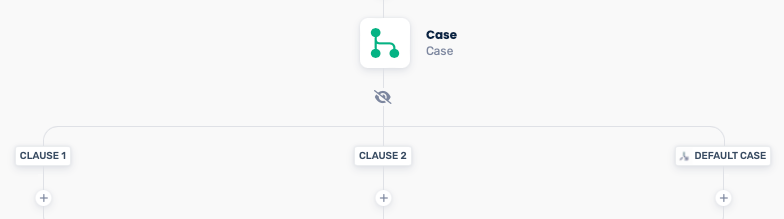
Editing case names and clauses
Click on a case control at the top of a case pathway to open its configuration slide-over.
Optionally, give the selected case a name.
Enter your chosen clause condition to evaluate. The application evaluates each of the case’s clauses in sequence, selecting the first case that has a clause that evaluates to ‘true’.
The default case
Note that the default case has no clause. Rename the case by clicking on the case control; note, however, that it can’t be deleted.
Adding actions to cases
Add and remove actions to a case paths the same way you would for a normal workflow.
Deleting case pathways
Delete a case pathway using the delete from inside its clause control. This deletes all actions and configuration on the path, as well as the case path itself.
Use a case
Show/hide case pathways
You can show or hide the contents of a case action by clicking the eye symbol immediately below the case action.
Clause evaluation
Cases are evaluated in order from left to right. The workflow will follow first case it finds where its clause evaluates as true. If it reaches the final, default case it will follow this case pathway.
Clauses that return a value are handled as either true or false, even if the clause does not return a true / false result (called a boolean). This means cases find some way to make progress down a case pathway, provided the evaluated clause is not empty or misconfigured. Strings, numbers, object (etc.) are evaluated as either true or false, depending on the type they return. This might be unintuitive: for example, the string ‘false’ is evaluated as true because it’s a non-empty string: you’ll get more intuitive outcomes by ensuring clauses return a boolean.
Escaping cases
If you need to exit a case before it has completed, or if you need to jump to a different path or even somewhere else in the workflow entirely, it can be help to use a Go To action. A Go To allows program flow to jump to another action in the workflow. See the article on the Go To action for further information.
Resources
These resources may be useful when working with case actions
Go to action
Was this helpful?
Still need help? Share an idea