Saved Search
Reference documentation for using the Ivanti Neurons for ITSM Saved Search action
Written By Support Channel
Last updated Over 1 year ago
Overview of the Saved Search action
The Saved Search action allows you to return records from a saved search configured in Ivanti Neurons for ITSM using the Saved Search API.
Understanding the Saved Search action
The Saved Search action provides an easy way to reuse existing saved searches in your workflows. Saved searches are created within the Ivanti Neurons for ITSM environment and contain predefined filters and logic. Instead of recreating these filters in each workflow, you can reference the saved search directly.
Neurons for ISM System
Select the Ivanti Neurons for ITSM system that the schema will be retrieved from.
Business Object
Specify the exact name of the business object. For example: Incident
Search (Saved Search)
Name of Saved Search that will be used from your Ivanti environment.
Search (optional)
A keyword or phrase used to narrow results by matching against common fields like title or number.
Filter (optional)
A more specific way to control what is returned. Use OData style syntax, for example CountHelpful eq 50 or Status eq 'Active'.
Sort By (optional)
Choose a field to sort the returned records by. For example CreatedDateTime or Title.
First Record (optional)
Sets the starting point of the result set. For example if you want to skip the first few records and start at the 5th result, enter 5.
Number of Records (optional)
Limits how many records are returned. By default the query will return up to 25 records with a max of 100
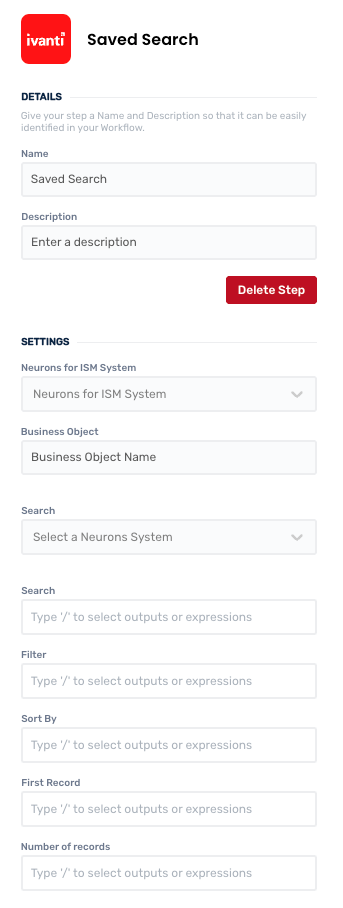
Working with Saved Search action
This action supports additional configuration such as sorting, pagination, and limiting the number of results. The returned data can then be used across the rest of your workflow.
Once retrieved, related records can be looped through using a For Each action or passed into a card carousel, message, or any other action that supports this data.
Create and manage Saved Search actions
Add a Saved Search action
Add the action
Use the following steps to add the action to a workflow.
How to add an action to a workflow
How to add an action to a workflow
Click the ‘plus’ symbol on the workflow path at the point you want to insert the action. This opens the action menu slide-over.
Either:
Search for the action using the Search field above the actions in the menu.
Locate a Recently Used action in the top section of the menu.
Navigate to the action within menu: Core actions are listed under Actions, while Plugin actions are contained within their associated integration.
Select the desired action to insert it. This reveals the action’s configuration panel.
Use the Name field to name the action. This can help users to understand your workflow at a glance. (optional)
Use the Description field to add information describing the action. This can help users wanting to understand how your workflow functions (optional).
Configure the action
Use the following steps to configure the action.
Set values for the Neurons for ITSM System, Business Object, Search, Search, Filter, Sort By, First Record and Number of Records.
Click back in the main view to hide the slide-over.
Delete a Saved Search action
Use the following steps to remove the action from your workflow:
How to remove an action from a workflow
How to remove an action from a workflow
Access the workflow in draft mode to edit it.
Either:
hover your mouse cursor over the action, and then click the red cross that appears over the top-right corner of the action to delete it. Or:
click on the action to open the action slide-over. Click the red 'Delete Step’ button to remove the action from your workflow.
Click Publish in the top-right to commit your changes.
Take care when deleting an action to also remove any logic using its outputs: workflow steps may function incorrectly or break if they attempt to evaluate an output of a deleted action.
Was this helpful?
Still need help? Share an idea