User Info
Reference documentation for using the User Info action
Written By Support Channel
Last updated Over 1 year ago
Overview of the User Info action
The User Info action is used in workflows that run with the Microsoft Teams chat client. It retrieves key details about the current user’s Microsoft Teams information.
Understand the User Info action
The User Info action when using teams as the chat client and a valid user is found, the following information will be returned:
Email - The user's full email address, example: “john.smith@example.com”
Given Name - The user's first name or forename, example: “John”
Surname - The user's last name or last name, example: “Smith”
Name - The user's full display name, typically a combination of given name and surname, example: “John Smith”
User Role - Indicates the user’s role within the Teams environment. Common values include:
User – A standard member of the team.
Admin – A user with administrative privileges.
Guest – An external collaborator invited into the Teams environment.
Add an User Info action to a workflow
Click the ‘plus’ symbol on the workflow path at the point you want to insert the action. This opens the action slide-over.
Select the Microsoft Teams integration to show the Teams actions.
Select the User Info action to insert it.
Click back in the main view to hide the slide-over.
Delete an User Info action
Use the following steps to remove the action from your workflow:
Access the workflow in draft mode to edit it.
Either:
hover your mouse cursor over the action, and then click the red cross that appears over the top-right corner of the action to delete it. Or:
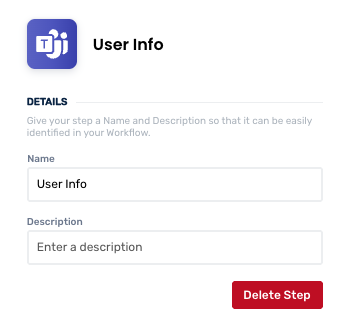
click on the action to open the action slide-over. Click the red 'Delete Step’ button to remove the action from your workflow.
Click Publish in the top-right to commit your changes.
Removing the Teams User Info action will make any expressions or logic relying on the user’s Teams data return “Unknown Action”.
Use a User Info action
After using the User Info action, you will be able to use / to call on and utilise the User Info fields under the User Info category.
Was this helpful?
Still need help? Share an idea